


Register for your new MyChart patient portal account today.
Follow the step-by-step instructions below to register using your mobile phone or computer.
MyChart registration: Step-by-step instructions
Before you begin, have the following ready:
• Your mobile phone
• Your email address
• Your MyChart activation code (if you received one)
Want to access MyChart for a child or another family member?
MyChart proxy access allows you to view or help manage another person’s health information through your own MyChart account. You do not have to be a UAB Medicine patient to create a MyChart account. However, you will need your own MyChart account to receive proxy access to another person’s MyChart.
Proxy access may be available for parents or guardians managing a child’s care, adult children helping a parent, or spouses and other care partners.
Do not share MyChart usernames or passwords. Learn more about proxy access and how to request it.
Choose the instructions for the device you want to use to register.
Are you using a mobile phone or computer?
Register for MyChart on a smartphone
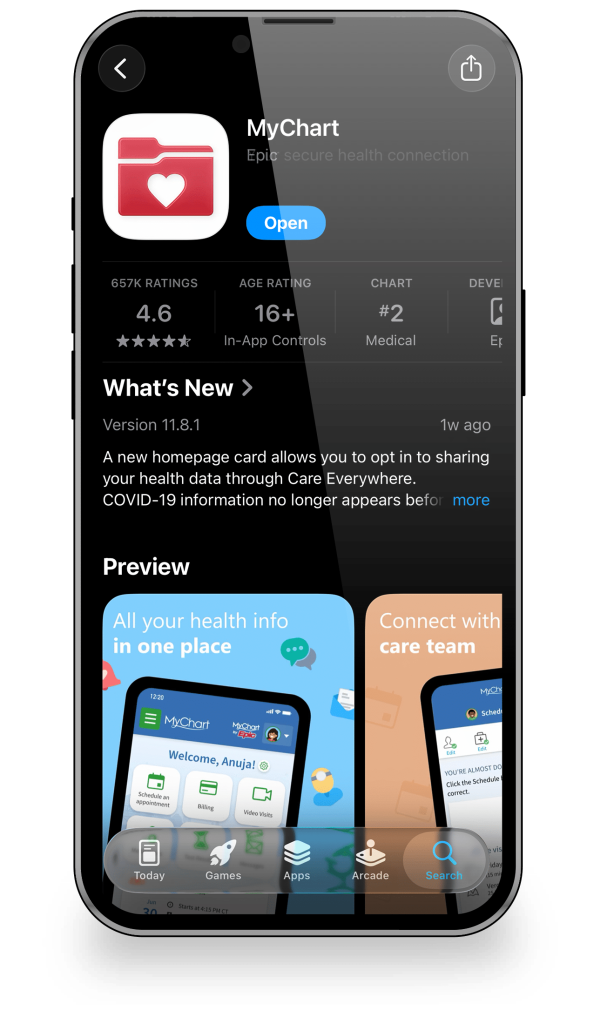
Step 1: Download the MyChart app
Download the MyChart app from the Apple or Google Play app store for your mobile device.


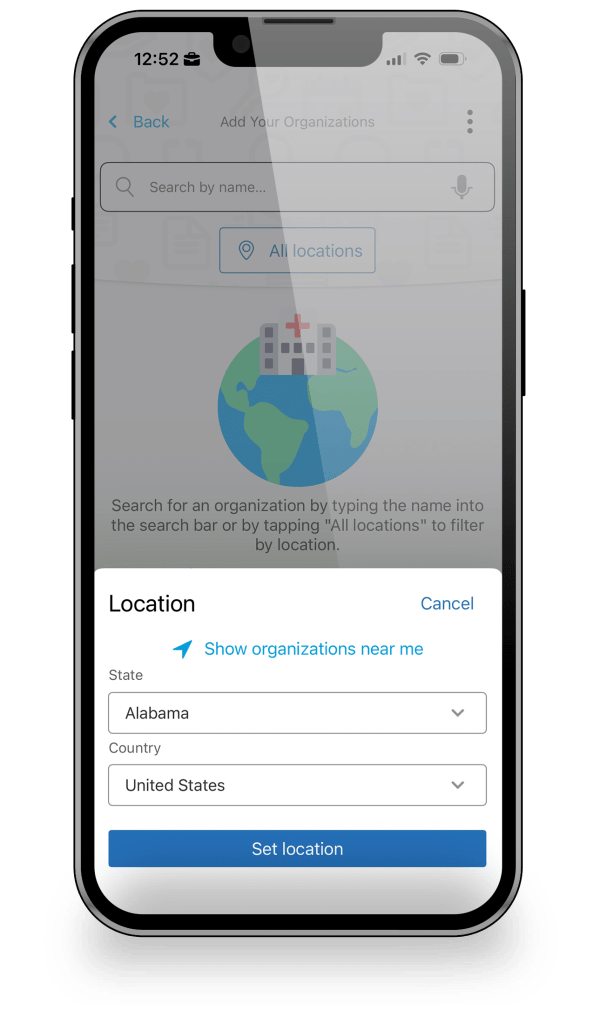
Step 2: Search for UAB Medicine
In the organization search bar, type UAB Medicine or UAB St. Vincent’s.
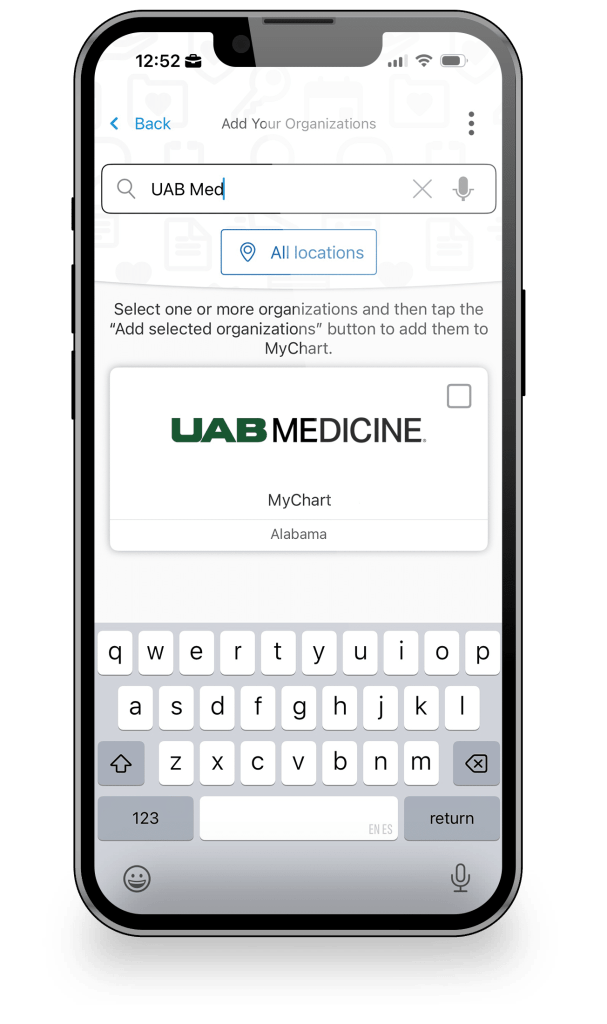
Step 3: Select UAB Medicine
Select the UAB Medicine MyChart patient portal and click the button as instructed. Important: Even if you receive care at UAB St. Vincent’s, you will register through the UAB Medicine MyChart patient portal.
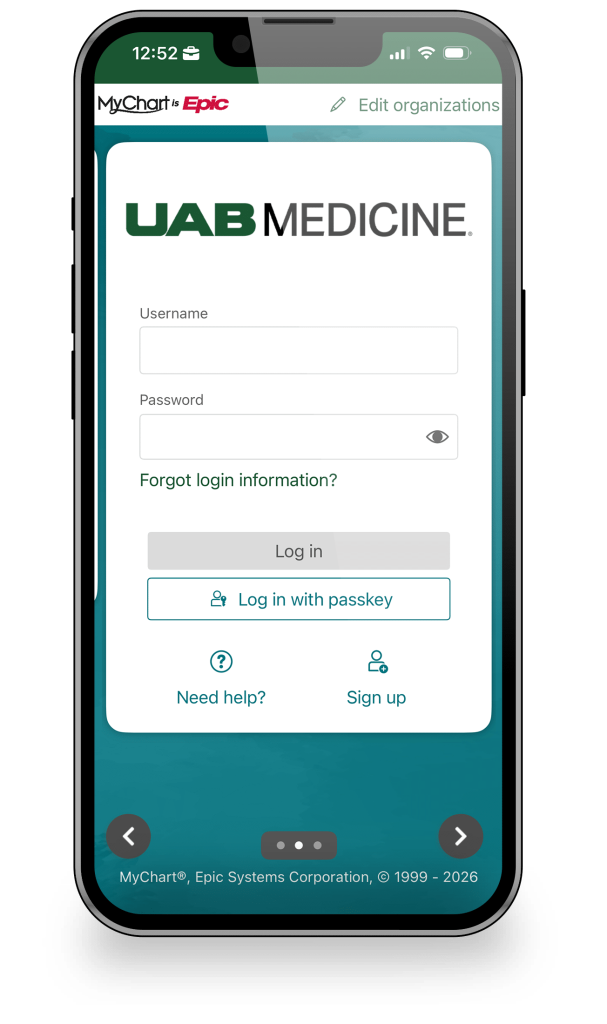
Step 4: Select ‘Sign up’
On the login screen, tap on the “Sign up” button in the bottom right corner to begin registration.
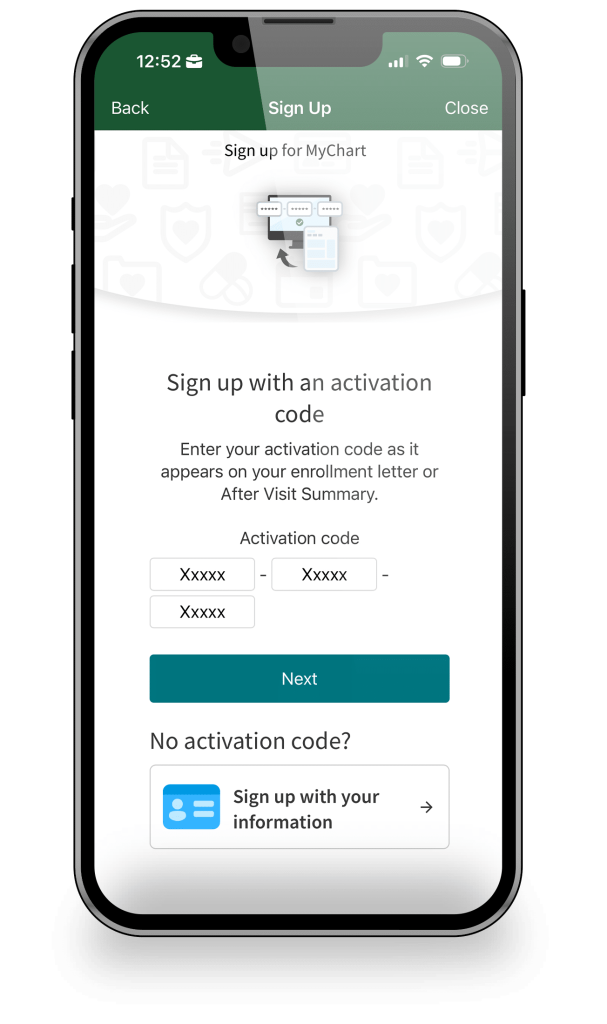
Step 5: Enter your activation code
If you have an activation code from your enrollment letter or email, or if you received one as part of your paperwork from a medical visit, please enter the code and tap “Next”. If you do not have an activation code, select “Sign up with your information”.
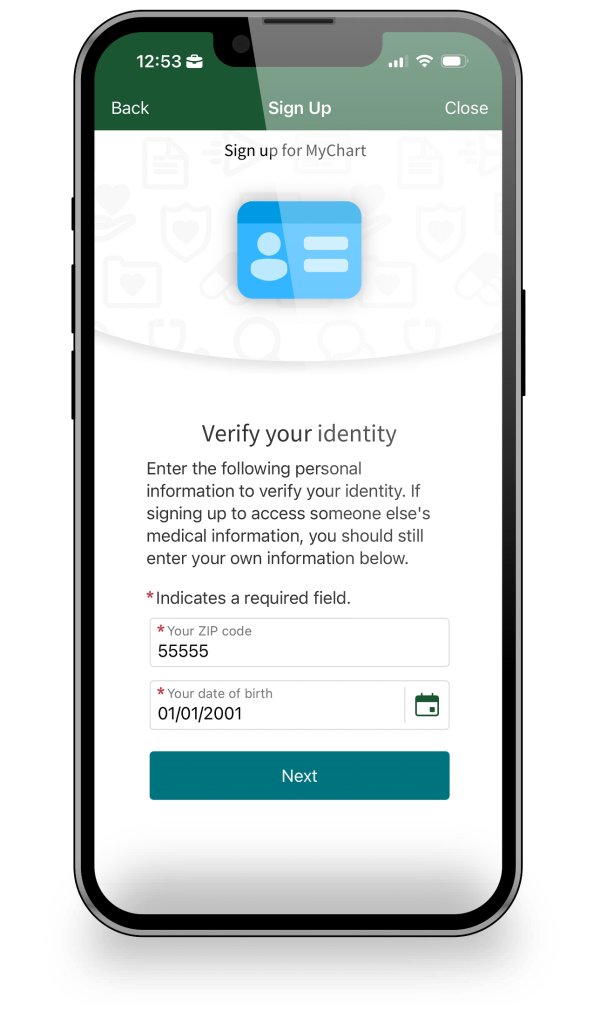
Step 6: Verify your identity
Enter the requested information, such as your ZIP code and date of birth.
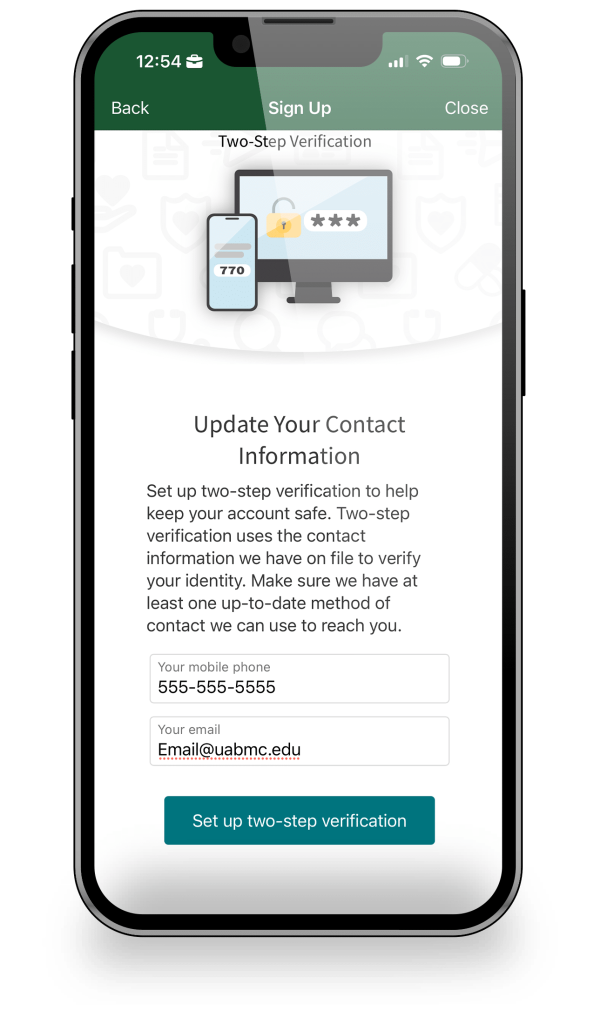
Step 7: Confirm your contact information
Verify or update your mobile phone number and email address.
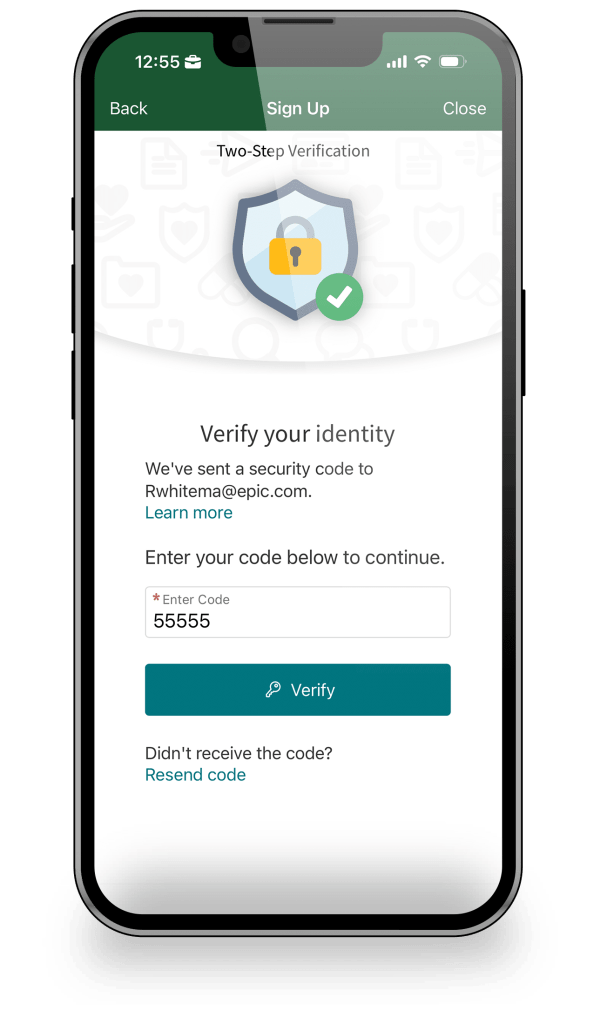
Step 8: Complete two-step verification
Enter the security code sent to your phone or email address.
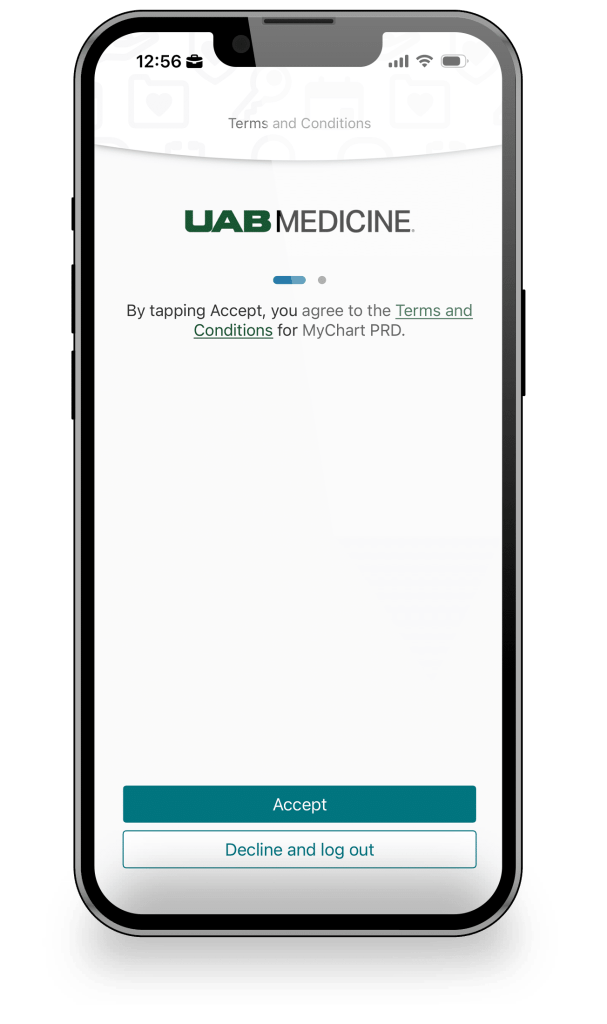
Step 9: Accept the Terms and Conditions
Review and accept the MyChart Terms and Conditions.
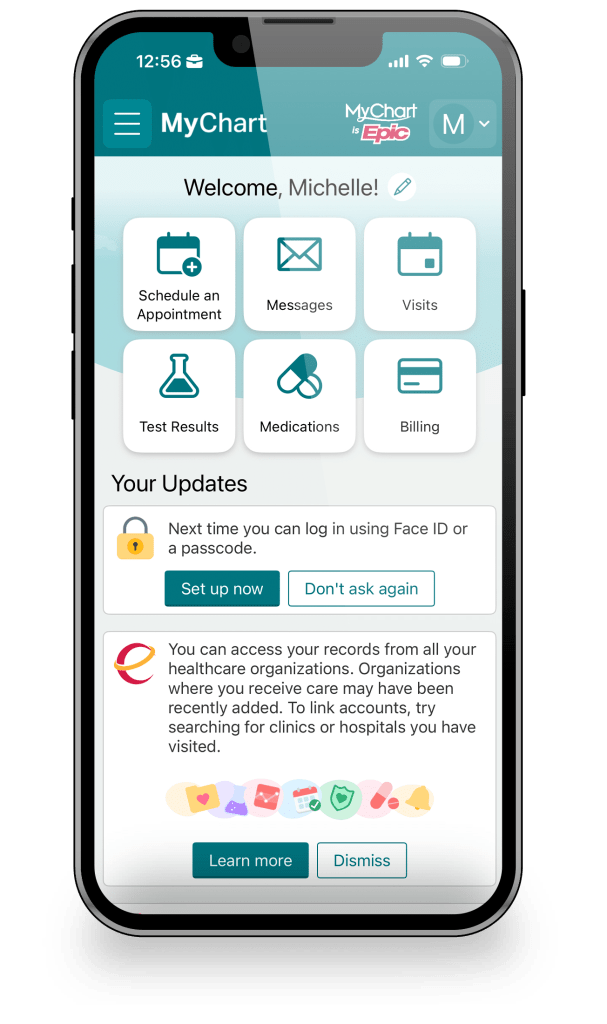
Step 10: Start using MyChart
Your registration should now be complete, and you can begin using the MyChart patient portal.
Register for MyChart on a computer
NOTE: Even if you receive care at UAB St. Vincent’s, you will register through the UAB Medicine MyChart patient portal.
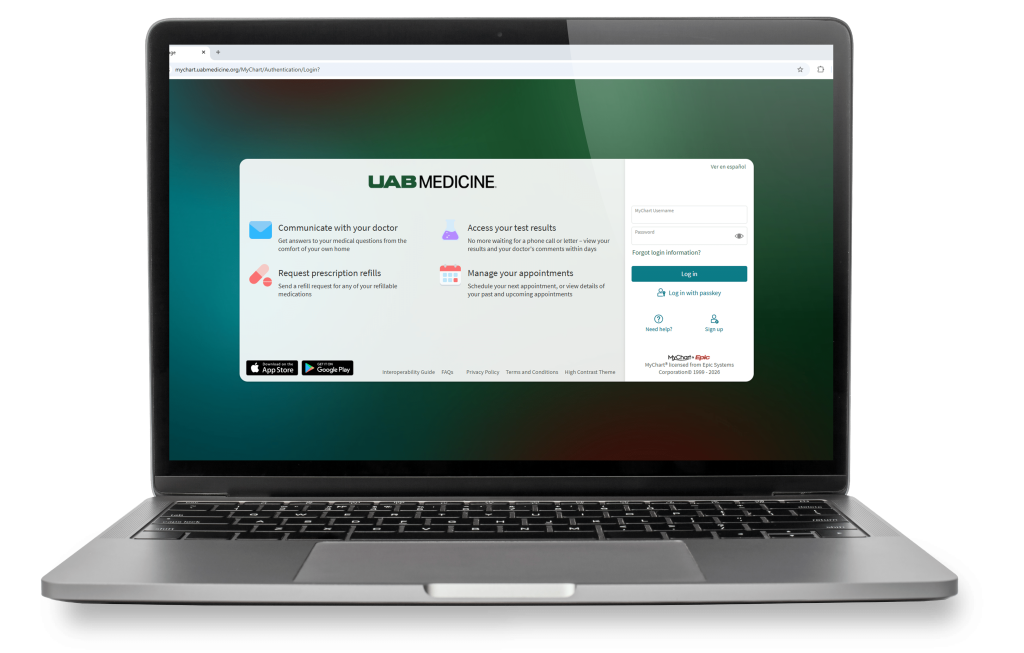
Step 1: Go to the MyChart website
Visit mychart.uabmedicine.org with your browser.
In the bottom right corner of the login page, click “Sign up”.
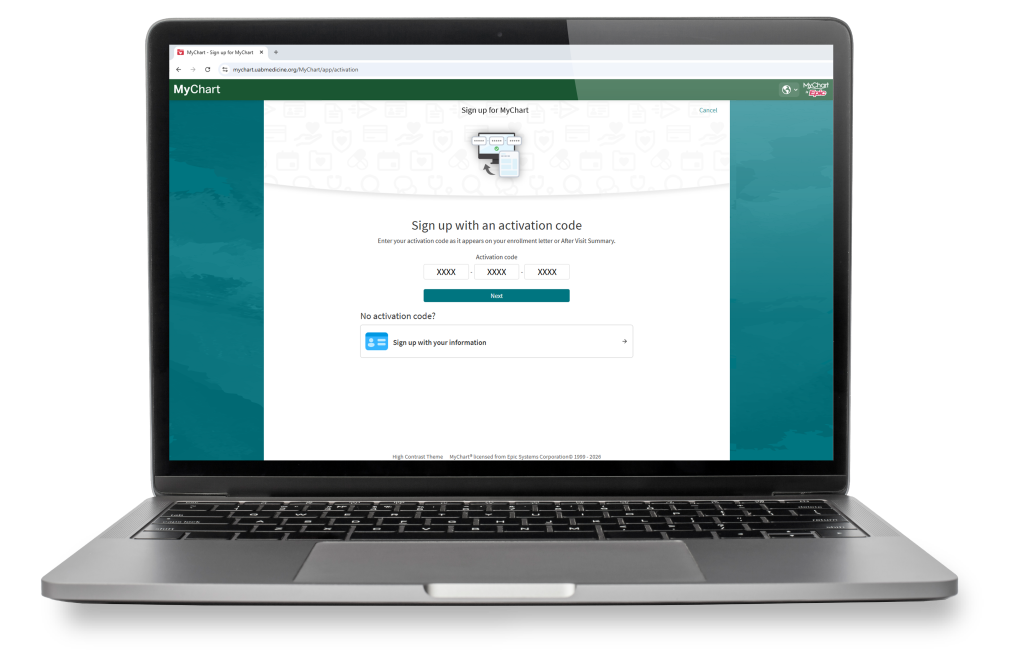
Step 2: Sign up with an activation code or using your personal information
You will see “Sign up with an activation code” at top of the page.
If you have an activation code, enter it in the boxes shown on the screen and then click “Next”. Your activation code may be listed on your after-visit summary or in an email from your clinic.
If you do not have an activation code, click “Sign up with your information”.
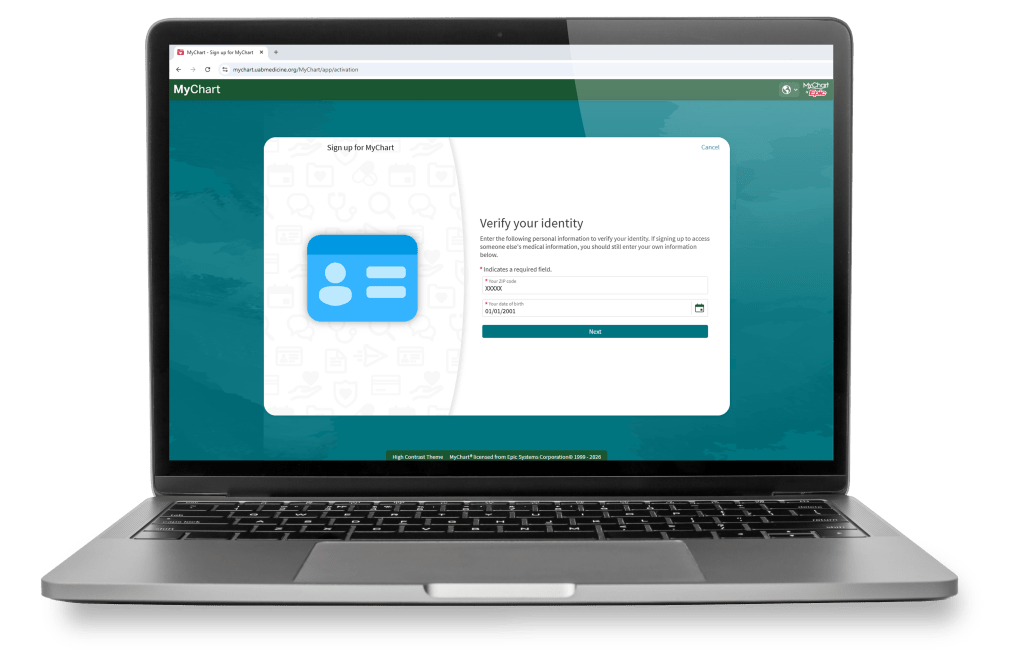
Step 3: Verify your identity
You will be asked to enter information to confirm your identity.
Enter your ZIP code and date of birth, then click “Next”.
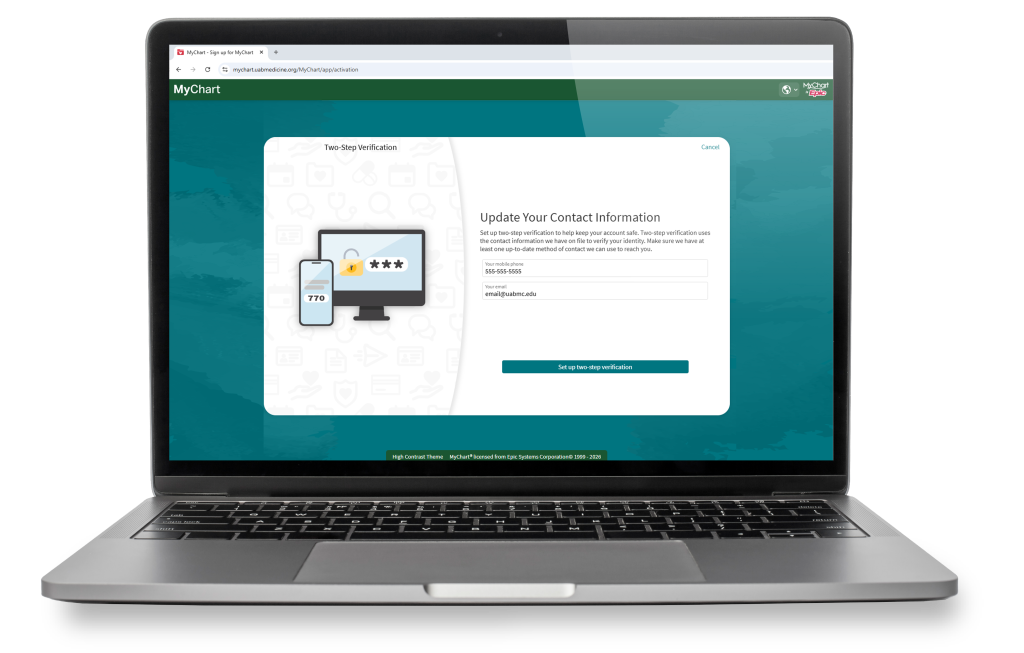
Step 4: Update your contact information
MyChart will ask you to confirm your contact information for two-step verification.
Make sure that your mobile phone number and email address are correct, then click “Set up two-step verification”.
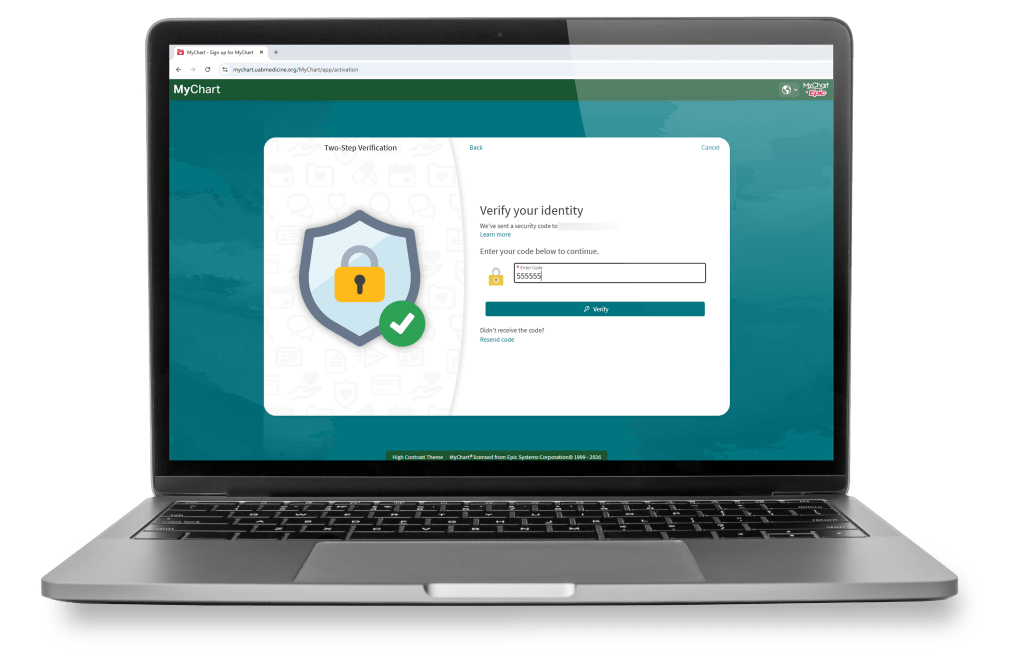
Step 5: Enter your security code
MyChart will send a security code to the phone number or email address listed.
Enter the code in the box and click “Verify”.
If you do not receive a code, click “Resend code”.
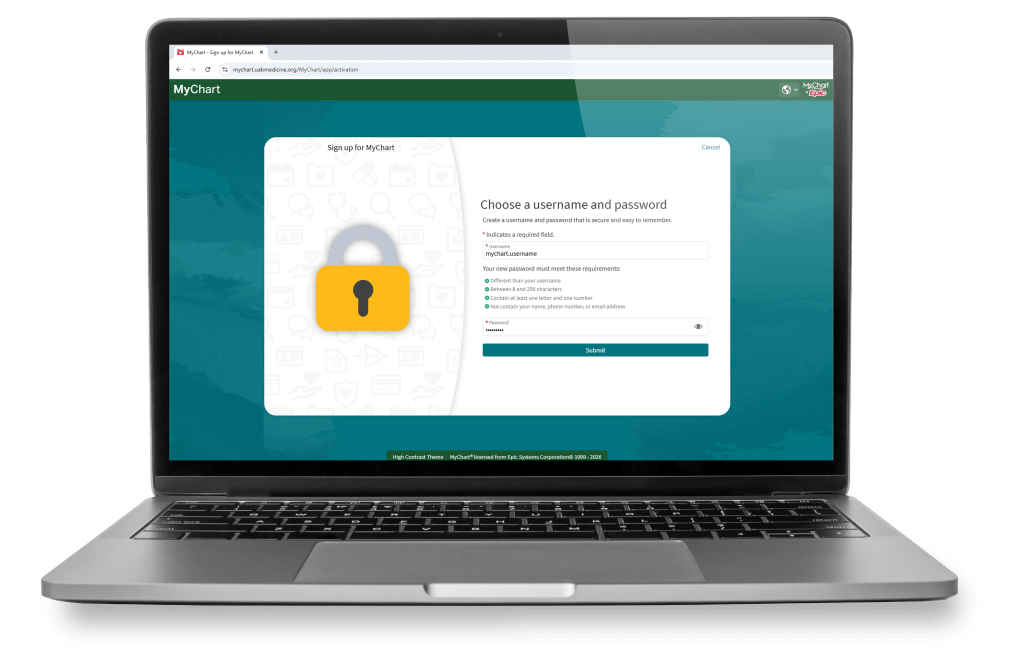
Step 6: Choose a username and password
Your password must meet the requirements listed on the screen. It must be different from your username, have at least one letter and one number, and not include your name, phone number, or email address.
After entering your username and password, click “Submit”.
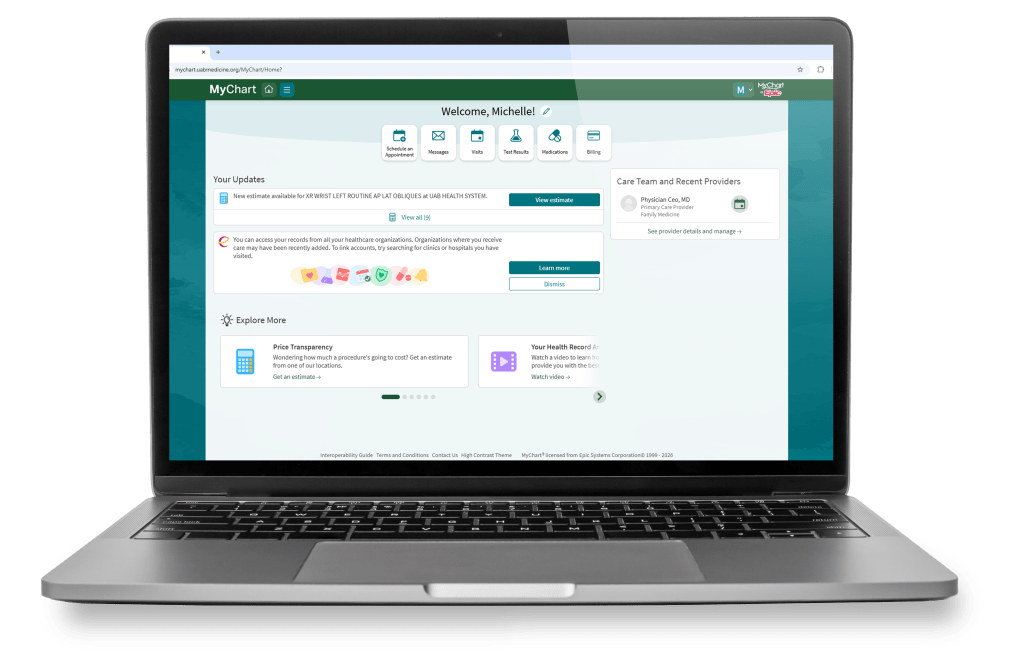
Step 7: Start using MyChart
Your registration should now be complete, and you can begin using the MyChart patient portal.